Smart TV IPTV setup
How to set up IPTV on a Smart TV (Samsung, LG, Android TV)
Prepare Samsung, LG webOS and Android/Google TV for an IPTV trial: updates, app sources, storage, room network checks, safe credentials and a repeatable setup record.
Direct answer
Direct answer
Prepare the Smart TV first: update the system, free storage, install only the supported app from a trusted source, test on the real home network in the viewing room, and use the 12-hour trial to verify startup, navigation and stability. Technical success never proves content licensing—confirm authorization separately.
Key checks
- ✓ Record brand, model, OS version and free storage before support contact.
- ✓ Prefer official app stores; avoid random APK or sideload files from chat.
- ✓ Test in the viewing room at normal evening hours, not only beside the router.
- ✓ Keep passwords private; document model, app name and connection type only.
Start with a device identity card
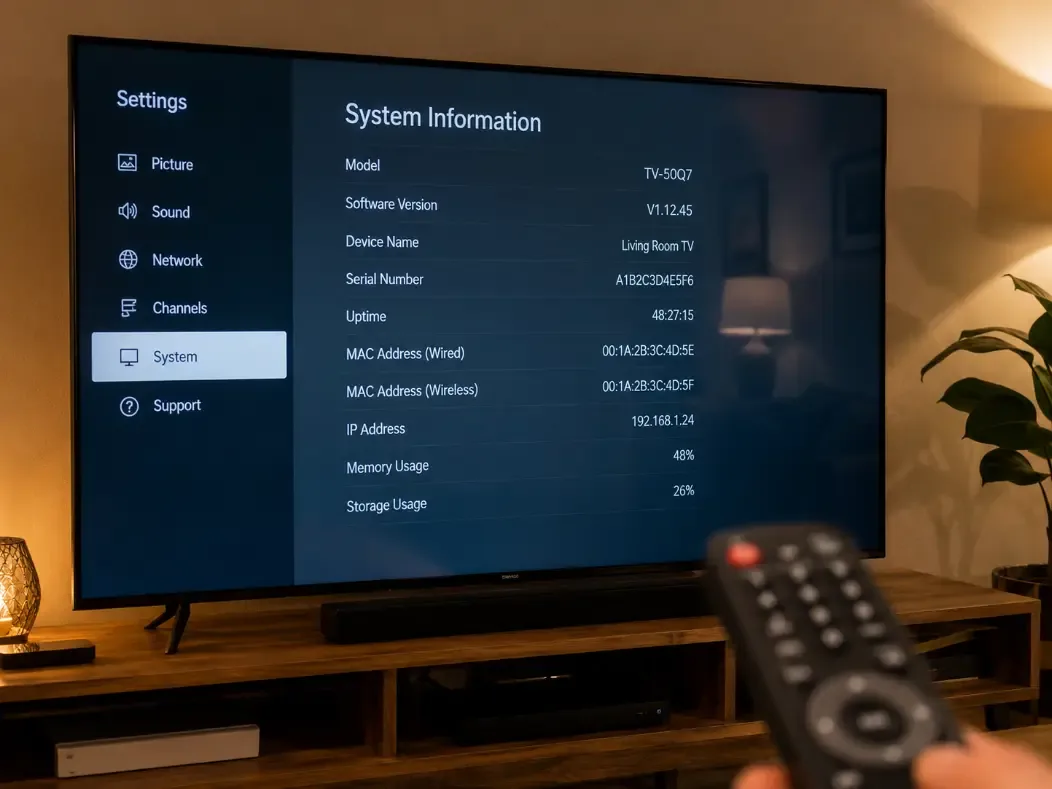
Before installing anything, write down brand, exact model, operating system family (Tizen, webOS, Android TV, Google TV, Fire TV, etc.), software version and free storage. Support cannot diagnose “a Samsung in the living room” as reliably as “Samsung UE55AU7100, Tizen, 2.1 GB free.”
Install pending system updates, reboot once, and confirm date, time and region. Wrong clock settings break SSL and app sign-in more often than users expect.
- •Note wall-mounted vs stand placement (Wi-Fi path changes).
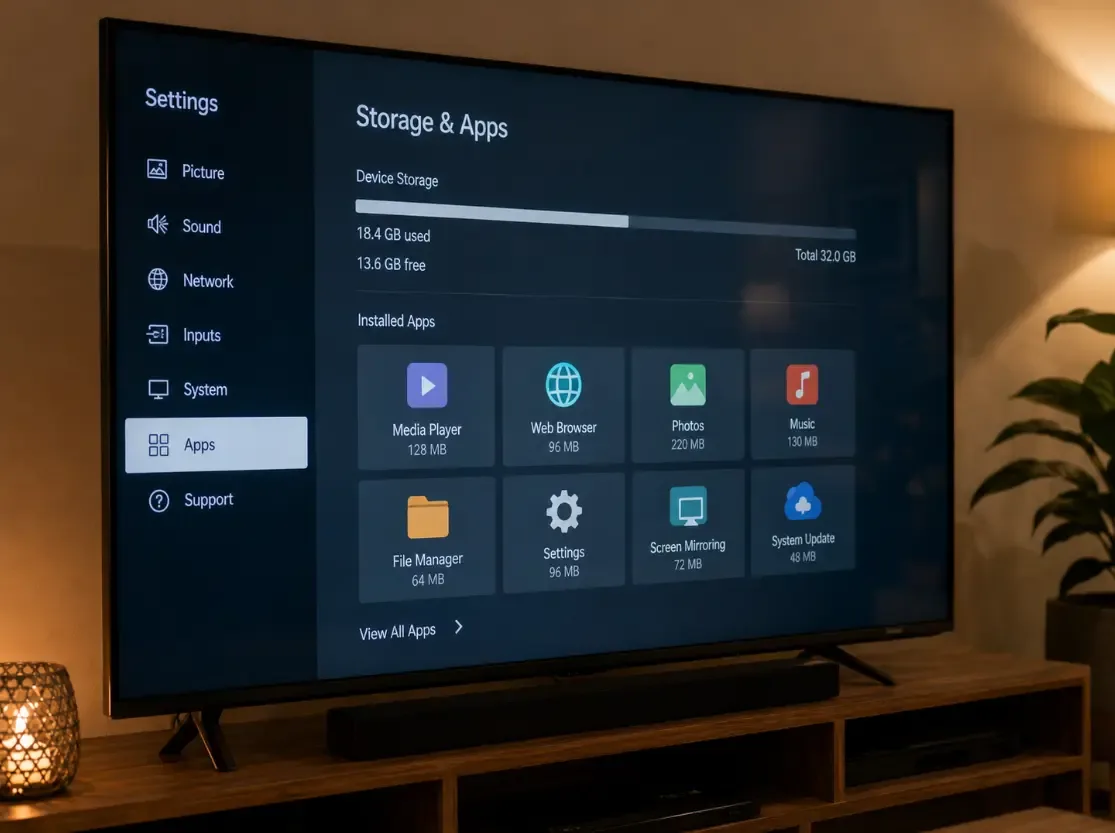
- •Uninstall unused apps if storage is under ~1 GB free.
- •Disable aggressive battery/network savers that kill background streams.
- •Keep the TV powered during firmware updates.
Platform notes: Samsung, LG and Android TV
Samsung Tizen: use the Smart Hub / official store path the provider documents. Older Tizen builds may lack apps available on newer models—confirm model year, not only screen size. After install, grant only the permissions required for playback and network access.
LG webOS: check webOS version in settings before promising compatibility. Some players depend on store availability by region. If the official store app is missing, ask for an approved fallback device (stick or box) instead of unknown sideloads.
Android TV / Google TV: confirm Google Play (or the documented store), available RAM/storage, and that the remote can navigate the player. Factory Android boxes vary wildly—cheap sticks often fail under 1080p multi-hour sessions even when a short clip looks fine.
- •Same diagonal size ≠ same app store or decoder capability.
- •If the provider lists “Android,” ask whether they mean phone, TV box or both.
- •Refuse unknown “custom firmware” packages for Smart TVs.
Choose and harden the application
An IPTV app is a player and interface, not a licence certificate. Ask which app versions are supported, how credentials are delivered, and whether setup is guided by official documentation.
Avoid installation files pushed as random links in chat. Check publisher name, requested permissions and privacy text. Never send your TV, Google, Apple or bank passwords to support—share model, OS version and app name only.
Test the real evening viewing path
Run the trial on the television and network you will actually use. A phone speed test next to the router does not describe Wi-Fi behind a wall-mounted TV.
Check cold start, channel or category switch time, audio sync, picture freezes, sleep/wake recovery and behaviour after a short power cycle. Repeat at peak household hours when possible.
- •Compare Wi-Fi vs temporary Ethernet if a port is available.
- •Note other downloads running in the home during the test.
- •Record time of day and whether only one room is affected.
Keep a safe setup record
Document: model, OS, app name/version, connection type (Wi-Fi band if known / Ethernet), steps that worked, and failures with timestamps. Store passwords offline—never in public screenshots.
When something fails, change one variable at a time: app restart → TV reboot → router reboot → closer Wi-Fi or Ethernet. That sequence is how you separate device limits from network issues.
Field observation log
Field observation: wall-mounted Smart TV setup (living room)
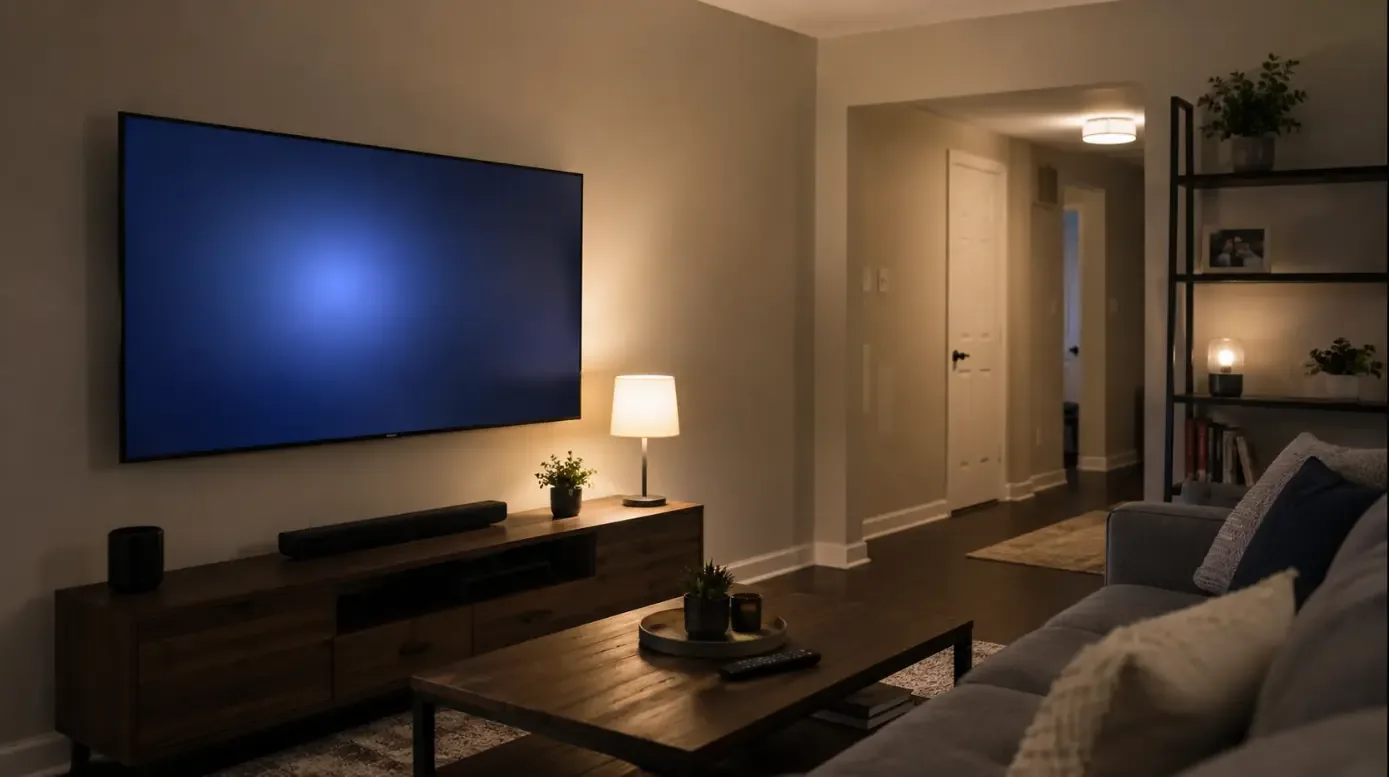
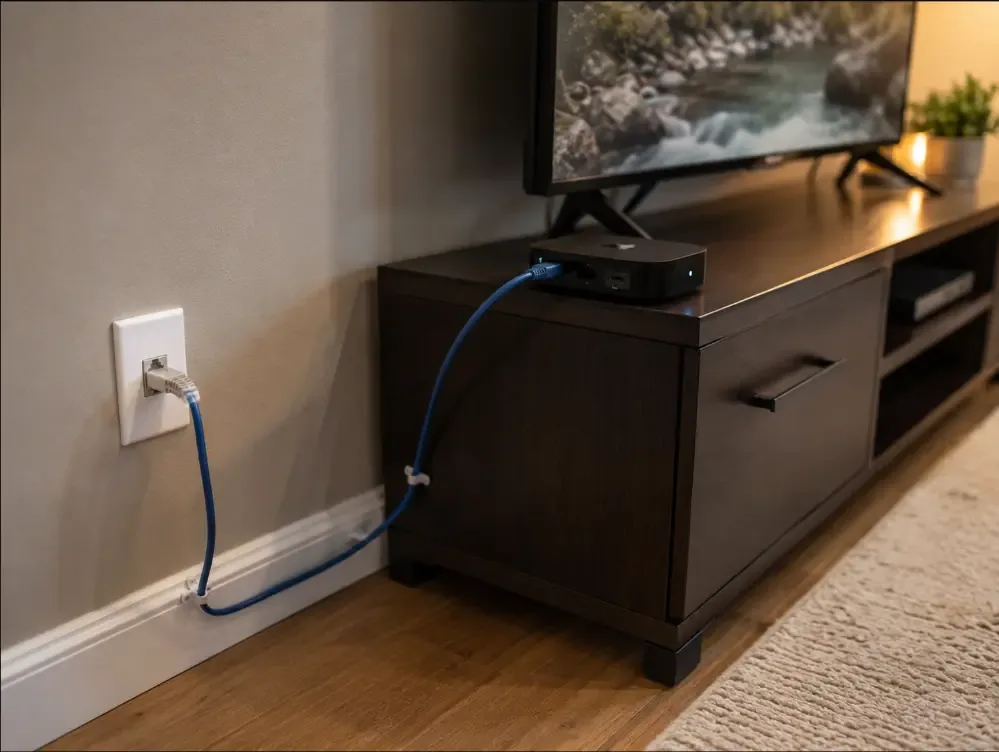
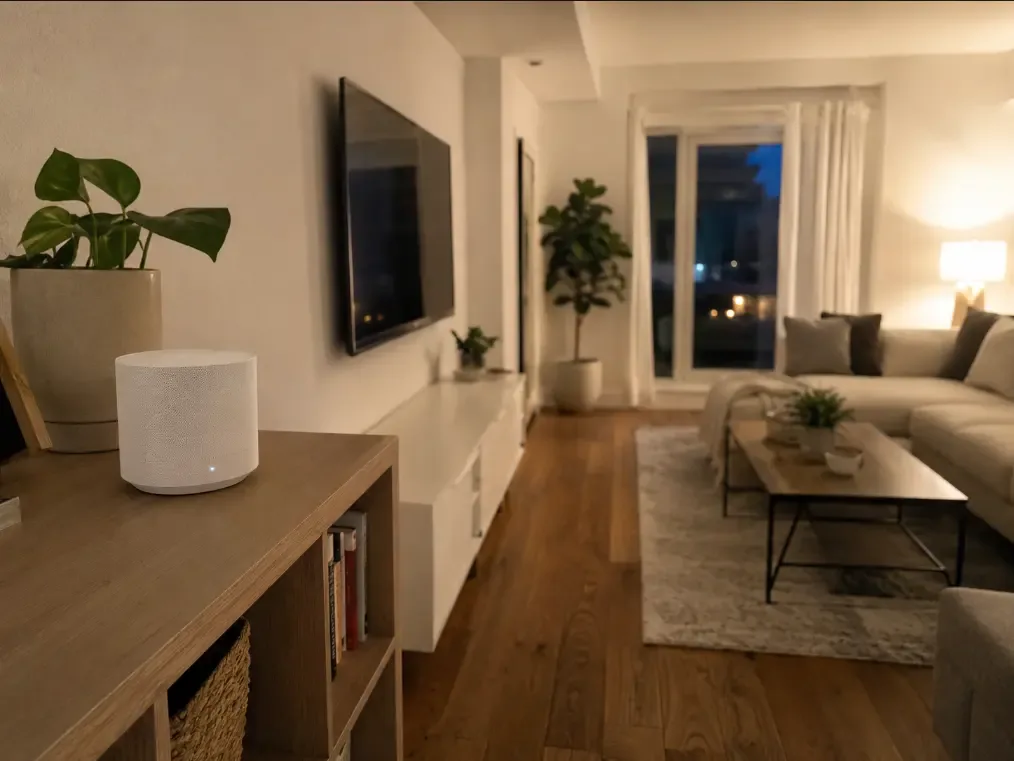
Household setup reviewed with Elena Vance (device) and Marcus Thorne (network). Observation photos of the room path, settings, Ethernet control and mesh fix are included below.
Observation photos
- Date of observation
- 2026-06-28 (evening peak, ~20:30 local)
- Device
- Samsung Smart TV (55"), Tizen, wall-mounted living room
- App path
- Official store player recommended by support; no sideload
- Network baseline
- 2.4/5 GHz dual-band router in hallway, ~8 m through one interior wall
- Initial failure
- App installed, but stream stalled after ~3–6 minutes on Wi-Fi only
- Control test
- Temporary Ethernet via USB-C adapter path to TV media box: no stalls in 45 min
- Working fix
- Moved mesh node into living room line-of-sight; retested Wi-Fi 5 GHz; stable 90+ min
- Still limited
- Second bedroom phone stream still soft on 2.4 GHz—expected; not main TV path
Setup looked “installed” but was not trial-ready until the real room path was fixed. Model + wall placement + evening Wi-Fi mattered more than the plan name. Content rights were treated as a separate question from technical success.
Observation photos are shown above. Re-validate timings and device models in your own home before changing plans.
FAQ
Do all Smart TVs support the same IPTV apps?
No. Availability depends on platform (Tizen, webOS, Android TV, etc.), model year, region and software version—not only screen size.
Is a successful technical trial proof the service is legal?
No. A trial only shows device, app and network behaviour under test conditions. Distribution rights must be confirmed separately.
Should I send my TV or Google account password to support?
No. Share model, OS version and app name. Never share television, email, bank or store passwords.
What if my Smart TV has no Ethernet port?
Use a quality Wi-Fi path or a small Ethernet-capable stick/box as a bridge. Test stability in the viewing room before paying for a long plan.
How this guide was prepared
This guide combines a repeatable evaluation process with dated household observations reviewed by our technical author and network reviewer. It does not claim every television, router or provider was tested. Confirm results in your own environment.
How this guide was prepared →Responsible-use note
Technical compatibility does not establish content rights. Use IPTV applications and subscriptions only with content that is authorized for the provider, region and intended use.
Responsible-use note →