IPTV buffering guide
How to fix IPTV buffering: diagnose device, Wi-Fi and provider causes
Step-by-step IPTV buffering diagnosis: pattern logging, one-variable isolation, Wi-Fi vs Ethernet controls, device limits, peak-hour tests and a support-ready report.
Direct answer
Direct answer
Fix IPTV buffering by changing one variable at a time. First map whether one device or the whole home is affected, then compare Wi-Fi vs Ethernet or closer router placement, restart app → device → router in order, and log time, category and recovery. A single speed-test number rarely identifies the real cause.
Key checks
- ✓ Write the buffering pattern before buying hardware or changing plans.
- ✓ Isolate: one app vs whole internet; one room vs whole home.
- ✓ Use Ethernet or a closer access point as a control test.
- ✓ Send support a timed log—not “it’s slow”—and never passwords.
Define the buffering pattern first
Note start time, whether audio also stops, whether the UI stays responsive, whether freezes happen after a fixed number of minutes, and whether other streaming apps in the same room fail too.
A single category at 20:30 on Wi-Fi only is a different problem than every device failing on every site. Pattern first, purchases later.
- •One channel/category or many?
- •One device or several?
- •Only peak evening hours?
- •After N minutes of continuous play?
- •Wi-Fi only, or Ethernet too?
Run a strict isolation sequence
Restart only the application and retest for five minutes. Then reboot the viewing device and retest. Then reboot the router/mesh and retest. Restarting everything at once destroys evidence.
Move the device closer to the router or switch to Ethernet temporarily. If buffering disappears, the local wireless path is the prime suspect—not automatically “the subscription.”
Separate local Wi-Fi from provider-side symptoms
Local signs: only Wi-Fi fails, signal bars drop when walking, mesh node far from TV, microwave/neighbour congestion, many simultaneous 4K downloads.
Provider-side or route signs: Ethernet and Wi-Fi both fail the same way, multiple unrelated apps still work, but this service freezes on several devices at once. Still log times—support needs timestamps, not adjectives.
- •Test another online video app on the same TV.
- •Note ISP outages or weather events only if verified.
- •Do not VPN-hop randomly during diagnosis—it adds variables.
Check device limits and household load
Older Smart TVs and cheap sticks often buffer when free storage is near zero, when many apps sit in memory, or when the SoC cannot sustain decode + network jitter. Close unused apps, update firmware, and stop background cloud backups on phones sharing the same Wi-Fi.
Household load matters: game downloads, camera uploads and second-room streams can starve the main TV without the “speed test” looking terrible for ten seconds.
Build a support-ready evidence note
Include: device model, OS/app version, connection type, room, start/stop times, categories affected, steps already tried, and whether Ethernet control fixed it. That report is worth more than five vague chat messages.
Never send passwords, payment screenshots with full card data, or remote-access invitations to strangers. PlayReadyTV support only needs technical context and order identity when relevant.
Field observation log
Field observation: evening buffering on main TV only
Reviewed with Marcus Thorne (network isolation) and Elena Vance (device/app limits). Observation photos of the freeze pattern, log, Wi-Fi check, Ethernet control and household load are included below.
Observation photos


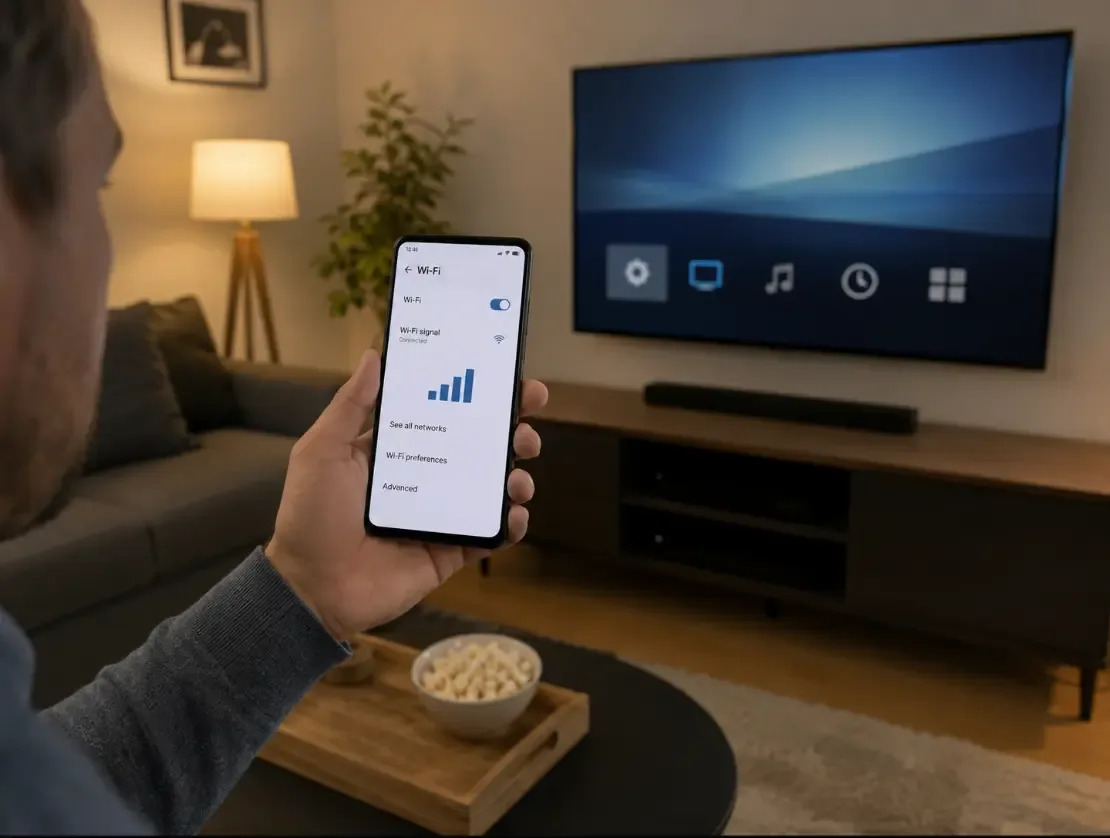

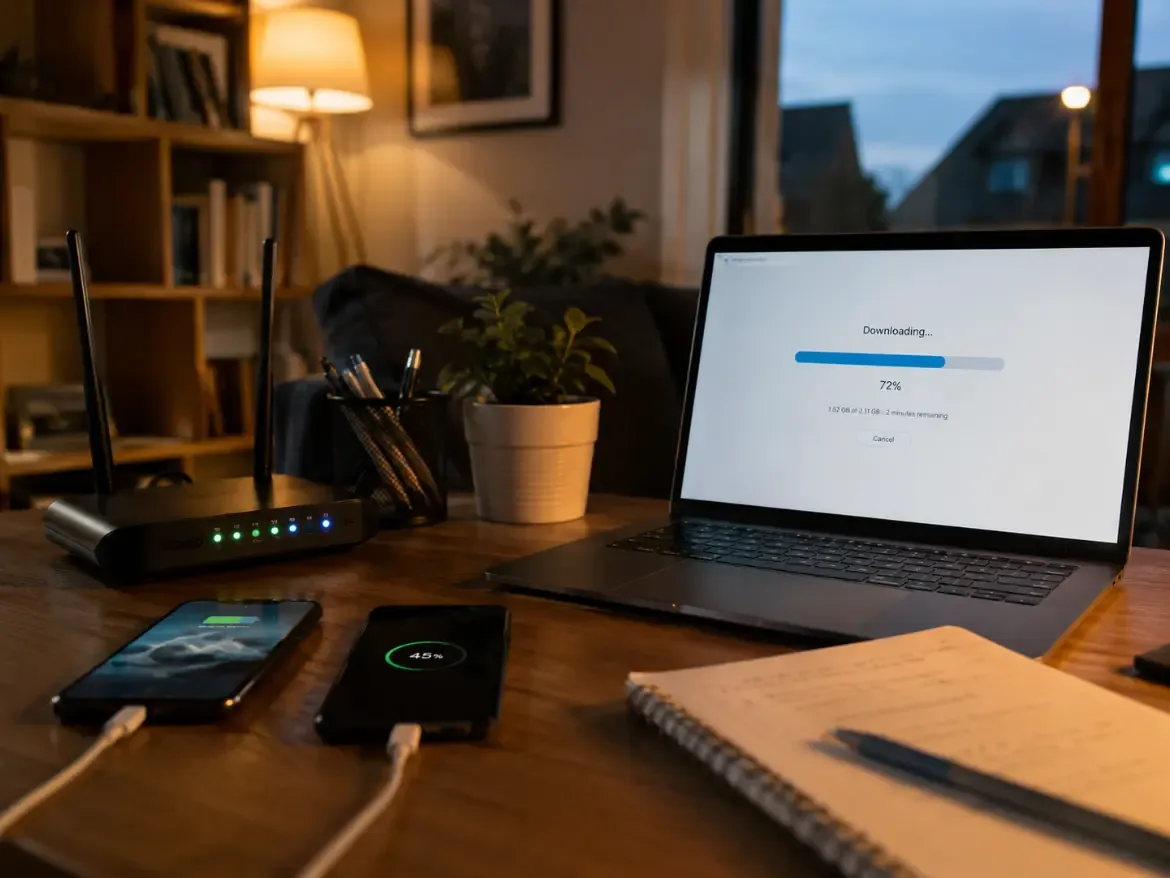
- Date of observation
- 2026-07-02 (19:45–21:15 local)
- Main device
- LG webOS Smart TV, living room Wi-Fi 5 GHz
- Pattern
- Freeze every 4–8 minutes; UI still responsive; audio cut with video
- Other devices
- Phone on same SSID: mild delay only; laptop Ethernet: other sites fine
- Speed-test trap
- Phone beside router: “good” Mbps; TV location: unstable RSSI
- Isolation step that worked
- Temporary Ethernet to TV path: zero freezes in 50 minutes
- Permanent fix tested
- Relocated mesh satellite; disabled multi-room cloud backup during peak; retested Wi-Fi
- Outcome
- Main TV stable 2+ hours same categories; second-room still weaker—expected
The subscription looked “broken” until Ethernet control proved the wireless path was the bottleneck. Peak-hour household uploads made Wi-Fi look worse than the plan quality alone.
Observation photos are shown above. Re-validate timings and device models in your own home before changing plans.
FAQ
Does a high speed-test result rule out buffering?
No. Short tests near the router miss Wi-Fi instability at the TV, device decode limits and route-specific issues.
Should I clear the application cache?
If the app supports it, it can help after you save login details safely. It is not a substitute for network isolation.
When should I contact the provider?
After you log the pattern and finish basic device/network isolation—especially if Ethernet and multiple devices show the same failure.
Is black screen the same as buffering?
Not always. Black screen can be app crash, DRM/path error or signal loss. Note whether the UI freezes, restarts or returns an error code.
How this guide was prepared
This guide combines a repeatable evaluation process with dated household observations reviewed by our technical author and network reviewer. It does not claim every television, router or provider was tested. Confirm results in your own environment.
How this guide was prepared →Responsible-use note
Technical compatibility does not establish content rights. Use IPTV applications and subscriptions only with content that is authorized for the provider, region and intended use.
Responsible-use note →